Auto Build Conveyor routes a conveyor between two components for you. You pick the two ends, FLDT works out a path of straight beams and bends, shows it as a preview, and builds it when you are happy with it.
Getting started
- Select the two components you want to connect. One needs a free output, where products leave it, and the other a free input, where products arrive. Both must belong to the same platform.
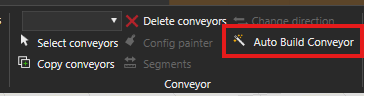
- Click Auto Build Conveyor, the magic wand in the Conveyor group on the Home tab. The panel opens, calculates a path straight away, and draws it as blue handles in the 3D view.
- Change the settings in the panel and click Recalculate when you want a different route.
- Click Build when the preview looks right. The panel adds nothing to your layout until you do, and you can remove the finished conveyor with Ctrl + Z, so it is safe to try a few variants.
Keep the panel open and select a different pair of components to route another gap. The panel recalculates the path each time you change the selection.
The settings
- Minimum segment length – the shortest straight segment allowed between two bends. Lower it to fit a route into a tight space, but read the limit below first.
- Bend options – the bend types the route may use: wheel bend, plain bend, and a custom version of each. The custom variants open up the angles in between the standard ones, so the more you leave ticked, the more freedom the route has.
- Collision options – switch to collision avoidance when the route runs through other equipment. It works slower, but it routes around obstacles. The avoidance algorithm has a random element, so you can retry to get a different solution.
- Angle preferences – add a range when you only want certain bend angles. Leave the list empty to allow any available angle.
The minimum segment length has a lower limit
FLDT measures segment length corner to corner, but a bend cuts the corner: it curves away from the straight before the corner and comes back after it. The beam only covers the middle stretch of a segment, with a bend eating into each end, and how much it eats depends on your platform.
Set the value far below the default and no middle stretch remains for a beam to sit in. The panel still plans and previews a path, but the build quietly leaves segments it cannot build at their original beam length, so the finished conveyor does not match the preview you approved. Raise the value and build again whenever a result differs from what you saw on screen.
Fine-tuning by hand
Drag a cylinder to lengthen or shorten a segment, or drag a sphere to change a bend angle. The angles snap to the ones available on your platform. The panel re-plans the rest of the route when you let go.
If the panel finds no path
The panel shows a message when the settings leave no room for a route. Try these fixes:
- Tick more bend options, especially the custom ones.
- Widen or remove your angle preferences.
- Reduce the minimum segment length.
- Move one of the components slightly and recalculate.
- If using collision avoidance, recalculate to find a new solution.
Check the two ends when the panel calculates nothing at all. Neither end can already connect to something else, and both components must belong to the same platform.
Was this article helpful?
That’s Great!
Thank you for your feedback
Sorry! We couldn't be helpful
Thank you for your feedback
Feedback sent
We appreciate your effort and will try to fix the article